Memory Connector Setup
Overview
When testing Quickwit connector queries in production with normalizations, we need the relevant views to be available in Trino. This guide walks through setting up a local memory connector to replicate production views and debug queries via trino-cli.
Prerequisites
- Decent understanding of how and why we use normalizations, and how views work.
- Know how to connect to Trino in production via
trino-cli.
Steps
1. Download the views from production
Use trino-cli on the relevant Trino coordinator (usually in the production region) to get the view definitions:
SHOW CREATE VIEW catalog.schema.view_name;For example:
SHOW CREATE VIEW _ticfdr.default."tic-fdr";Copy the SQL query you get for each view creation. You may need multiple views because views have dependencies on other views/tables. Check which other views or tables are referenced and download those as well.
2. Create catalogs in Trino
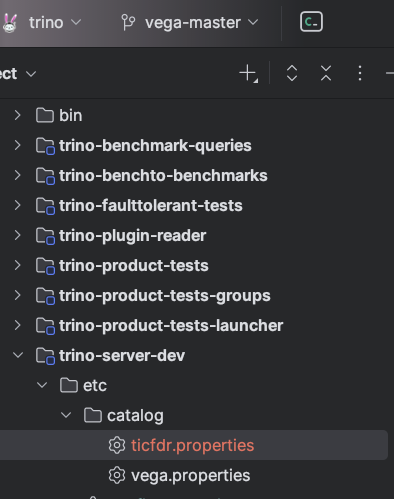
You need two catalog property files:
Quickwit connector catalog (e.g. ticfdr.properties):
Configure this to point to your Quickwit instance.
Memory catalog (e.g. vega.properties):
connector.name=memory
tenant.name=tudor-investments
3. Port-forward Quickwit searcher
Port-forward the Quickwit searcher in the designated region to your local environment.
4. Run the dev server
Start the dev server in debug mode.
5. Create the views locally
Using trino-cli, execute the SQL commands you copied in step 1 to create the views.
Note: Pay attention to the catalog and table names in your local environment – they may differ slightly from production.
6. Run and debug your queries
You can now execute queries against the Quickwit connector with normalizations and debug them in Trino.